eSIM Not Working? 12 Easy Fixes Before You Panic (2026 Guide)
Is your eSIM not working after installation? Whether you're seeing "No Signal," "No Service," or your mobile data isn't working, don't panic. Most eSIM issues can be fixed in just a few minutes. In this guide, we'll walk you through 12 simple troubleshooting steps to help get your eSIM connected and ready to use.

If you're using Datapang, our support team is here 24/7 on WhatsApp, KakaoTalk, and email. But try these steps first. Most issues are fixed in under 5 minutes without needing to contact us.
eSIM Not Working? Don't Panic.
You finally installed your travel eSIM. But, instead of getting online, you're seeing messages like:
• No Signal
• No Service
• Searching…
• SOS Only
• Mobile Data Not Working
It can be frustrating, especially when you've just landed in a new country.
The good news is that most eSIM problems are quick and easy to fix. In many cases, the issue isn't the eSIM itself but a simple setting on your phone.
Before contacting customer support, try these troubleshooting steps.
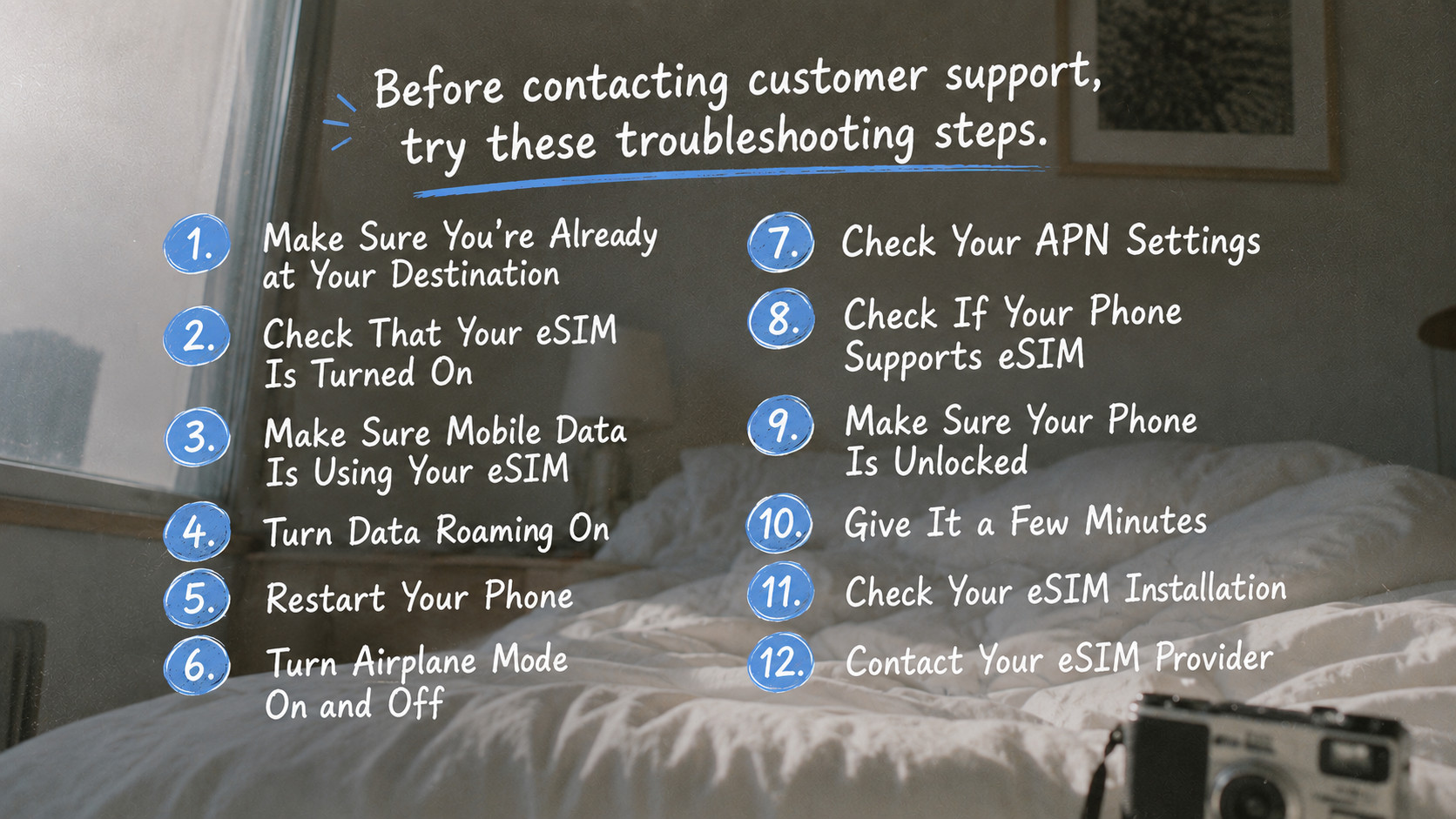
1. Make Sure You're Already at Your Destination
Many travel eSIMs only activate once you arrive in the destination country. If you're still at home, it's completely normal if the eSIM doesn't connect yet. For example, a Korea eSIM usually won't work until you arrive in South Korea.
Check your activation email or confirmation from your eSIM provider. It will tell you the exact activation window (usually when you land in the destination).
2. Check That Your eSIM Is Turned On
Open your phone's SIM settings and make sure the eSIM is enabled.
On most phones:
Settings → SIM Manager → Turn on eSIM
If it's turned off, your phone won't connect to the network.
3. Make Sure Mobile Data Is Using Your eSIM
If your phone still uses your home SIM for mobile data, your travel eSIM won't work. Go to your SIM settings and select your travel eSIM as the preferred mobile data SIM.
This is the #1 cause of "no data" complaints. Your eSIM is active but your phone is still routing data through your home SIM. Flip this setting and you'll likely be online in seconds.
4. Turn Data Roaming On
This is one of the most common reasons travel eSIMs don't work. Many travel eSIMs require Data Roaming to be enabled. Don't worry. This doesn't mean you'll be charged roaming fees. You're using your eSIM provider's network. Check your provider's installation guide to see whether Data Roaming should be ON or OFF.
If you're using Datapang, Data Roaming should always be ON. This is mentioned in your activation email, but many travelers miss it. Toggle it on in Settings → Mobile Data → Data Roaming.
5. Restart Your Phone
It sounds simple, but restarting your phone often forces it to reconnect to the local mobile network. Turn your phone off, wait about 30 seconds, then turn it back on.
6. Turn Airplane Mode On and Off
Sometimes your phone just needs to refresh its network connection. Turn Airplane Mode on for about 10–15 seconds, then turn it off again. Wait a minute to see if the signal appears.
7. Check Your APN Settings
Some eSIMs require a specific APN (Access Point Name). If your provider gave you APN instructions, make sure they're entered correctly. If no APN was provided, your phone usually configures it automatically.
APN settings are rarely the problem for travel eSIMs (they auto-configure in 99% of cases), but it's worth checking if everything else fails.
8. Check If Your Phone Supports eSIM
Not every phone supports eSIM. Even if your phone is relatively new, eSIM availability may vary depending on the country where it was purchased.
If you're unsure, check your device specifications before buying an eSIM.
Not sure if your phone is compatible? Datapang has a device checker tool that takes 30 seconds. Use it before troubleshooting further. If your phone doesn't support eSIM, no amount of troubleshooting will help.
9. Make Sure Your Phone Is Unlocked
A carrier-locked phone may prevent an eSIM from connecting to another network.
If your phone is locked to your home carrier, contact them to confirm whether it can be used with international eSIMs.
10. Give It a Few Minutes
Sometimes the first connection takes a little longer. After arriving, it may take several minutes for your phone to register on the local network. Be patient before assuming something is wrong.
If your eSIM has been installed for less than 5 minutes and you're already at your destination, wait a bit. Local networks sometimes take time to recognize new devices. Grab a coffee and check again in 2 minutes.
11. Check Your eSIM Installation
If the installation wasn't completed successfully, your eSIM profile may not have downloaded correctly. Open your SIM settings and confirm that your travel eSIM appears in the list. If it isn't there, you may need to reinstall it (if your provider allows reinstallation).
Screenshot your SIM settings so you can show support. This helps them diagnose the issue 10x faster.
12. Contact Your eSIM Provider
If you're using Datapang, reach out to our 24/7 support team:
For other eSIM providers, here's what to include when you contact them:
• Your destination country
• Phone model
• Screenshot of your SIM settings
• Screenshot of the error message
• Order number (if available)
Providing these details helps support resolve the issue much faster.
Common eSIM Error Messages
If you're seeing one of these messages, don't worry. They're usually easy to fix.
• No Service
• No Signal
• Searching...
• SOS Only
• Mobile Data Not Working
• Couldn't Activate eSIM
• Unable to Add eSIM
• Activation Failed
Most of these errors are caused by incorrect settings rather than a faulty eSIM.
Frequently Asked Questions
💬 Why is my eSIM showing "No Signal"?
This is usually caused by:
• Not being in the destination country
• Data Roaming turned off
• eSIM disabled
• Weak network coverage
The first thing to check is location. If you're still at home or in a different country, the eSIM won't activate. Once you arrive at your destination, go through steps 2-4 in order. 90% of cases are solved by that point.
💬 Why is my eSIM connected but mobile data isn't working?
Check that:
• Your eSIM is selected for mobile data.
• Data Roaming is enabled if required.
• The APN settings are correct.
"Connected but no data" is almost always because your phone is still routing data through your home SIM (step 3). Switch your mobile data preference to your travel eSIM and you'll be online.
💬 Should I restart my phone after installing an eSIM?
Yes. Although not always required, restarting your phone can help establish the first network connection.
💬 Can I reinstall my eSIM?
It depends on your provider. Some eSIMs can only be installed once, while others allow multiple installations. Always check your provider's policy before deleting your eSIM.
Most Datapang plans allow multiple reinstalls. So if you accidentally delete your eSIM or switch phones mid-trip, you can reinstall it. This is mentioned in your order confirmation.
💬 When should I contact customer support?
If you've completed all the troubleshooting steps above and your eSIM still doesn't work, contact your provider for assistance.
Don't be shy. Providers see thousands of eSIM issues every month. If you're stuck after going through this entire guide, support can usually fix it in under 5 minutes once they understand your setup.
Quick Checklist
Before contacting support, make sure you've checked:
● You're already in the destination country
● eSIM is turned on
● Mobile Data uses the eSIM
● Data Roaming is enabled (if required)
● Phone restarted
● Airplane Mode toggled
● APN settings checked
● Phone supports eSIM
● Phone is unlocked
● Waited a few minutes for network registration
Related Articles
Need more help with your eSIM? Check out these guides:
Still Having Issues?
If you've worked through this entire guide and your eSIM still isn't working, our support team is ready to help.
Using Datapang?
We're available 24/7 across three channels:
📱 WhatsApp: Message us
💬 KakaoTalk: Talk to us
✉️ Email: datapang@ptsk.co.kr
Average response time: under 5 minutes
Not using Datapang yet?
If you're dealing with a faulty eSIM from another provider, consider switching. Datapang offers:
• Instant 24/7 support (no waiting)
• Plans for 200+ destinations starting at $0.77
• 99.9% network reliability
• Multiple reinstalls per plan